What are SVG’s and why are they useful?
SVG stands for Scalable Vector Graphics. It’s a type of graphic format widely used in web design. SVG was developed by World Wide Web Consortium – W3C between 1998 and1999. It was then created as an open-standard XML based vector image and was officially released in September 2001. SVGs are especially useful because they are scalable and lightweight which beats traditional images like JPEGSs or PNGs. The can be scaled across a wide range of dimensions without losing its quality. This is why they are great for responsive web designs, icons, logos, illustrations and interactive graphics.
SVGs use mathematical formulas to create lines, shapes, colours and paths instead of pixels, which allows the image to be sharper.
Here is a comparison between a PNG and SVG of the same image:
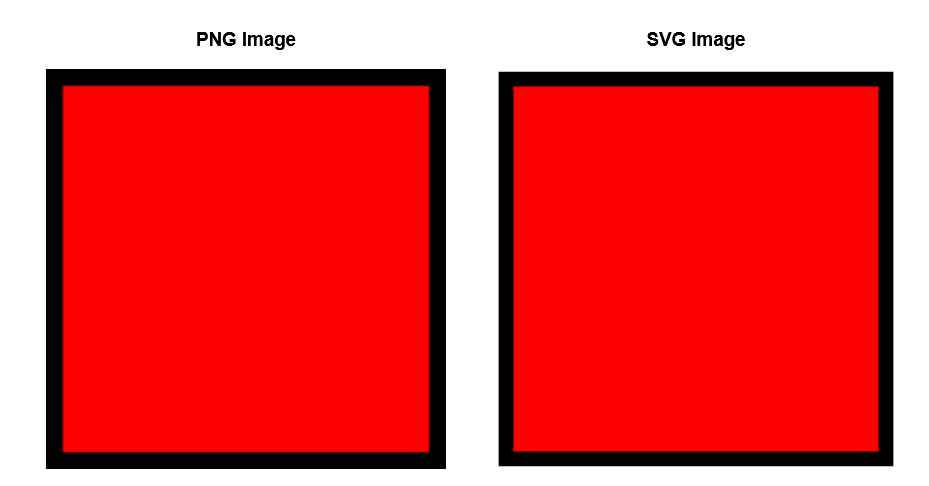
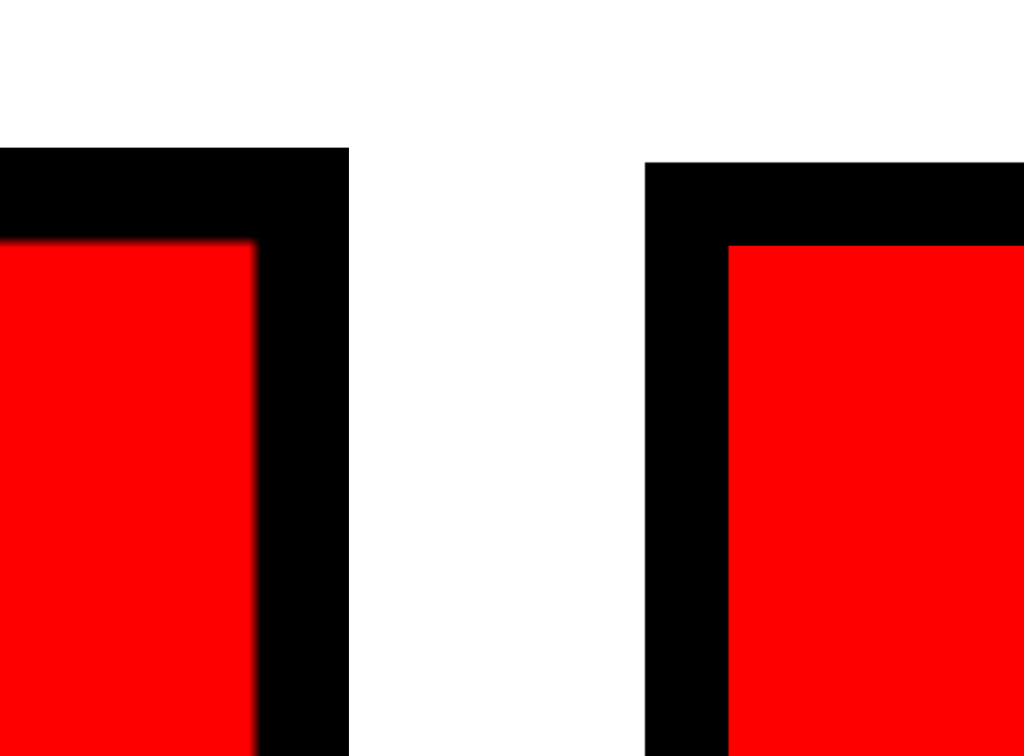
From a distance, the PNG and SVG image looks the same however when zoomed in, the PNG lines become pixelated while the SVG graphic remains sharp.
When comparing file size between the two images, the SVG file is less in size. But why does file size matter? Smaller file sizes create a better user experience. A webpage with a small file size will load faster. It also means that those with limited connectivity and are using mobile data will have less data to download. As well as this, it also improves the overall performance of the webpages.
Key benefits of SVGs:
- Scalable: No pixelation on any screen size which allows websites to have quality images.
- Lightweight: SVGs are often smaller in file sizes than high resolution PNGs or JPEGs
- Editable: It can be editing in both code and design software
- Interactive: It supports animations and CSS styling
How to Create SVGs
Here are a few ways SVGs can be created:
1. Manually writing SVG code – Its discussed in the ‘What are the various ways SVGs can be added onto webpages’ section under Inline SVGs.
2. Design tools – such as Adobe Illustrator, Figma and infinity.
Here’s a tutorial using Figma as the design tool
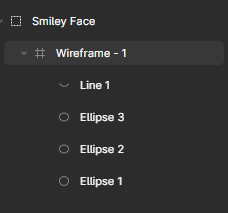
2.1. Create your shape – Here is a smiley face created in Figma using 3 cirlcles and a line.

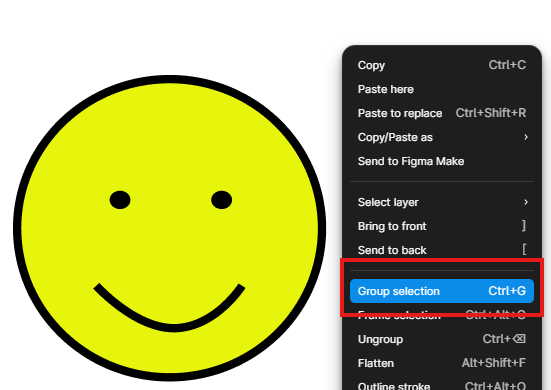
2.2. Group your wireframe. If your SVG has many shapes and layers, this ensures that the SVG is exported as a single image.
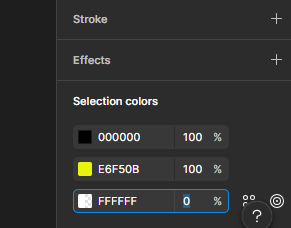
2.3. Remove the background (optional). If you don’t want your image to have a background, go selection colors. A Figma wireframe automatically comes with a white background so for the white colour (FFFFFF) change it from 100% to 0% and that should remove your background.

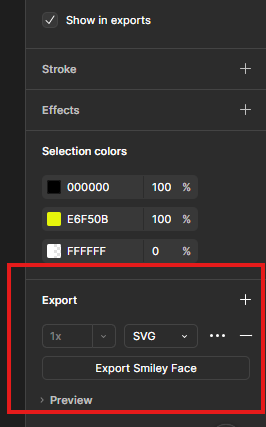
2.4. Once you are happy with your desired line or shape, go to the Export tab and click the +. Mine is set to PNG as default but we want to select SVG. Then click the Export button below, which will save your work as a SVG file.
2.5. When the file is opened, it should automatically display in the default web browser, allowing the SVG image to be viewed.
3. Converting graphics to SVG – You can also convert PNGs or JPEGs to SVG using online converter tools. However, it’s not the best practice because complex raster images may not always convert cleanly.
Here’s an example of an image that was converted from JPEG to SVG.


Various Ways SVGs Are Added to Webpages
Inline SVG
In HTML, SVG lines, shapes and colours can be created using code, where the position and the size of the shape is defined using x and y axis coordinates. Here are the basic shape elements that can be created:
1. An <line> element creates a straight line between two points. X1 and y1 is the starting point of the line, while x2 and y2 defines the ending point of the line. The stroke is the line colour; here it’s been set to green. And the stroke-width is the like thickness which I’ve set to 4.
2. The <rect> element creates a rectangle. The x = horizontal position (left to right) and the y = vertical position (top to bottom). The x and y positions determines where the rectangle starts on the page. The fill attribute determines the rectangles colour, here its been set to red.
3. The <circle> element creates a circle. The cx = centre point x axis and the cy = centre point y axis, while the r = radius. The radius determines how big the circle is. A larger radius value creates a bigger circle, and a smaller radius creates smaller circle.
4. The <ellipse> element creates an oval shape. What makes the ellipse different to a circle is the rx = horizonal radius and ry = vertical radius which will stretch the circle out. In the example, the rx is larger than ry, therefore shape will stretch horizontally.
5. The <polyline> element creates any shape made of connected straight. The points for polylines and polygons are represented in coordinate pairs. The pairs are written like this: x1, y1 x2,y2 x3,y3 x4,y4. The x value represents horizontal position, and the y value represents vertical position. In the example, there’s 4 pairings which makes 4 connected straight lines.
6. The <polygon> element is similar to <polyline>. The key difference is the polygon element automatically closes the shape, connecting the last point back to the first.
7. The <path> element is most versatile. Although SVG provides seven basic shape elements, the <path> element can create almost any vector shape, which makes it foundational to most SVG graphics used on websites.
Img tag
In this case, the SVG is used as an image source file, just like any other image on a webpage. It is important to also include a descriptive alt attribute so that those who are visually impaired can interpret the image through screen readers.

CSS Background image
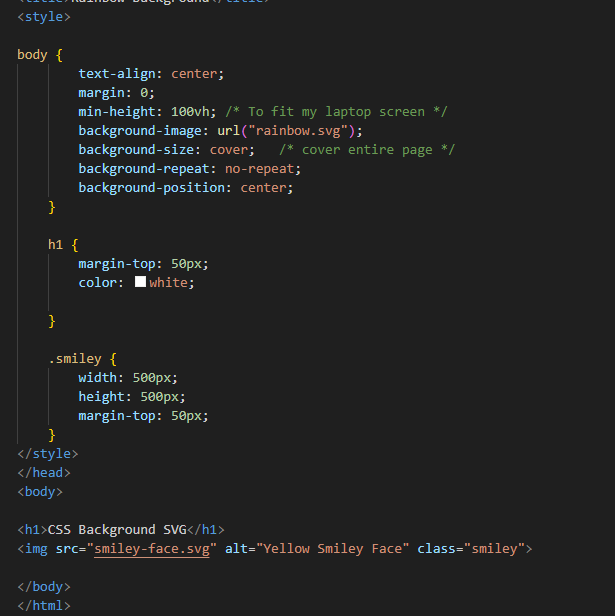
In this method, the SVG is being applied though CSS instead of placing it in the HTML. In the example, the background image has been added to the body CSS. The min-height is made to fit the screen size, and the background-image loads the SVG onto the webpage. Background-size is put as cover to cover the webpage and background-repeat is to make sure the SVG is not duplicated many times across the page.
SVG Sprites
This is best for reusing SVGs multiple times across the webpage without having to rewrite the full SVG code. The SVG is defined once inside the <symbol> element and each symbol is given its own unique ID. To be able to reuse the SVG, you would use the <use> element. Its especially good for styling all the SVGs you’ve reused, at once.
Creating CSS Animated SVGs
With CSS, it can animate properties such as colours, positions, scales and rotation.
Hover Animation
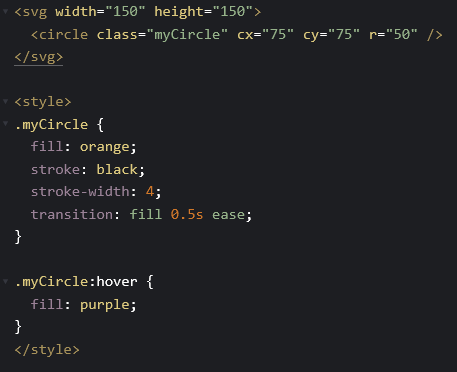
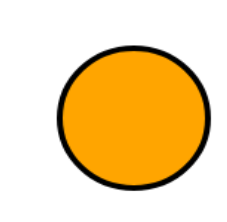
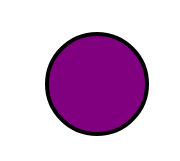
In the example below, the circle changes colour once the user hovers over it. The transition property tells the browser the way it should animate once the user hovers over it, the 0.5 ease gives it a slight delay into a smooth transition to a different colour. The MyCircle hover element is calling for the orange circle to turn purple when the user hovers over it.
Bouncing Animation
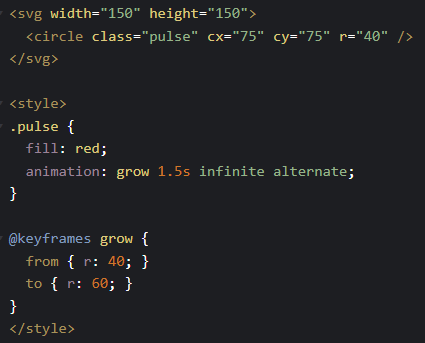
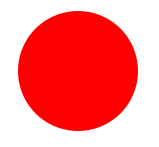
The <svg> element creates a 150×150 canvas, while the <circle> element draws a circle positioned in the centre using cx and cy. The CSS applies a keyframe animation that changes the circle’s radius from 40 to 60 pixels, causing the circle to expand and shrink repeatedly to create a pulsing effect.

How can they be optimised?
Why should we optimise our SVGs? Optimising SVGs improves the website performance and loading times which is from removing unnecessary things in the SVG.
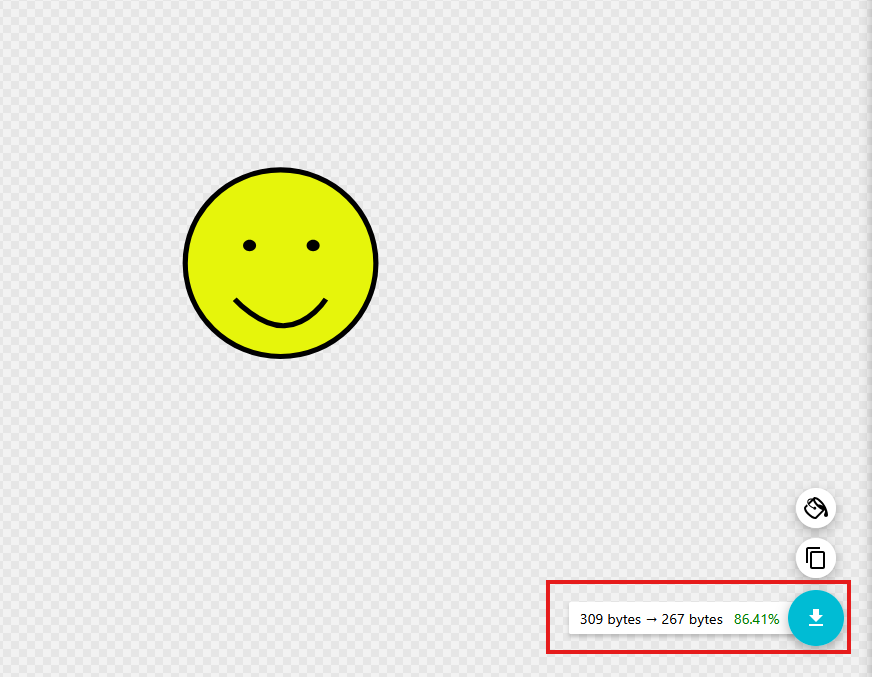
1. SVG optimisation tools – SVGOMG. A optimisation tool like SVGOMG removes spaces, comments, layers and metadata which is not needed. By doing this, the SVG file size will be reduced.
2. Code-level optimisation – If you are manually coding your SVG image, removing line breaks, indentations and extra spaces will also help reduce the file size.
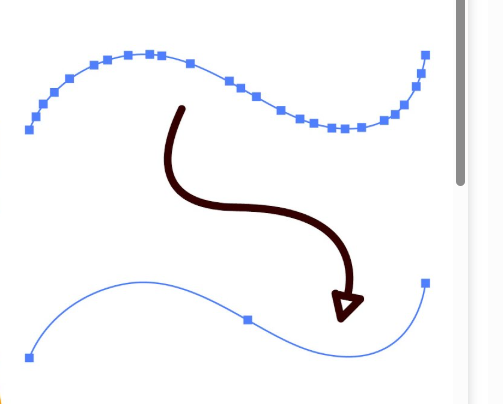
3. Simplify paths – if using a design tool to create your SVG from scratch, try reducing the amount of anchor points on your image and removing unnecessary layers. Extensive amount of anchor points and layers will make the file size bigger.